
Getting started: your sphere, your bubbles, your settings and your dashboard
Who this is for: you just created your GMB Club account, or you want to understand how the app is organized before going further.
What you'll see: what a Sphere and a Bubble are, the first screen of a new account, the dashboard and your AI agents, the Sphere › Bubble selector, creating a sphere and a bubble, the Settings page and its categories, connecting your Google listing.
Sphere and Bubble: the two words to know
GMB Club organizes your account on two levels, using the words the app uses:
- the Sphere is your brand or your network: a chain, a franchisor, or each of your clients if you are an agency;
- the Bubble is a location: a store, a restaurant, a practice, a point of sale.
A sphere contains one or more bubbles. Each bubble has its own connections: its Google listing, its social networks, its website.
Chargement du diagramme…
To remember:
- A single location: one sphere and one bubble.
- Several locations of the same brand: a single sphere, and one bubble per location.
- Several brands, or several clients if you are an agency: one sphere per company.
- The sphere's settings apply to all its bubbles. The language of generated content can still be changed bubble by bubble.
Step 1: the first screen
The first time you log in, GMB Club welcomes you in five steps, the first one being the creation of your account. The Let's get to know you screen asks you two questions:
- your phone number, if you are willing to share it ("For the GMB Club team only. Never shown publicly or shared.");
- How did you hear about GMB Club?, with an answer to tick.
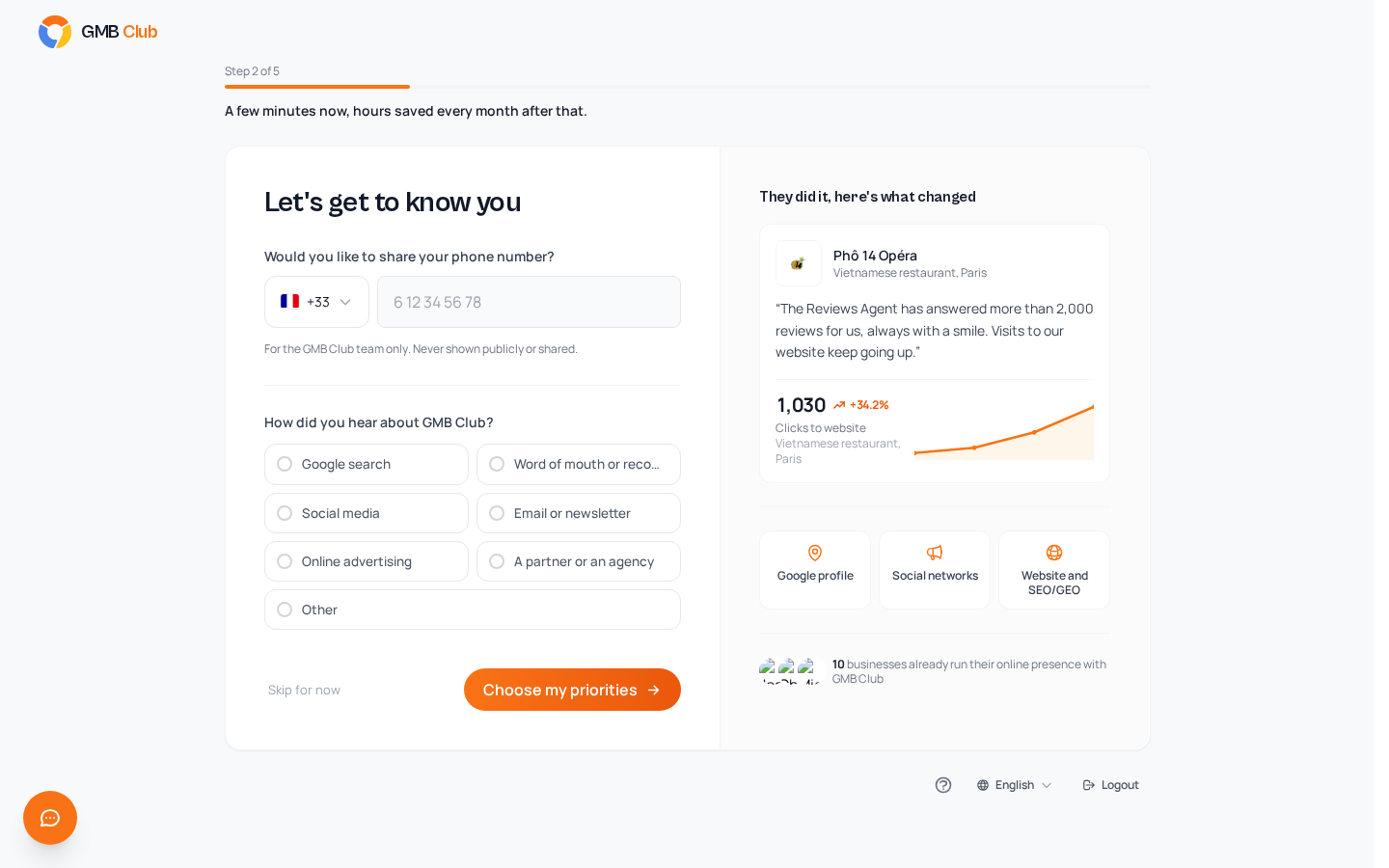
Click Choose my priorities to move on to the next step, or Skip for now if you would rather come back to it later.
Step 2: your dashboard
The dashboard is the home page of the selected bubble. The top bar groups the modules into three menus: Google Business, Social Media and Website. On the right, you find the Sphere › Bubble selector (step 3) and the gear icon that opens the Settings (step 4).

From top to bottom:
| Block | What it shows |
|---|---|
| Shortcuts | Cards to the most used modules, with a marker when there is something to do (for example the number of reviews awaiting a reply on Review management). |
| Ask your Assistant Agent | A field to write your request in plain language, and ready-to-click suggestions, such as Reply to my pending reviews or Draft a post for next week. |
| Next post | The next scheduled post (day, time, text, networks), then the following ones. |
| Your team at work | Your AI agents, each with what it did recently, access to its settings and an on/off switch. |
| Your presence | An overall score out of 100, broken down between your listing, your social networks and your website. |
| Opportunities to seize and This month | Leads worth acting on and the summary of the current month. |
| AI connectors | A card to link your own AI assistant, see AI connectors. |
Your AI agents
The Your team at work card presents your seven AI agents. They prepare the work, you stay in control. Each one has its switch to turn it on or off, and its settings next to it.
| Agent | Its role |
|---|---|
| Reviews Agent | Replies to new Google reviews in your location's tone, once you have turned it on (it is off by default). Below the minimum rating you choose, it leaves you a draft to approve instead of replying. |
| Visibility Agent | Completes your Google listing and keeps an eye on it. It only writes to Google with your approval. |
| Social Agent | Prepares your posts and their visuals for your connected networks, on the days you choose. You approve before publication. |
| SEO/GEO Agent | Writes articles for Google and for AI engines, based on your ideas. You choose the publication date. |
| Messaging Agent | Drafts replies to Messenger and Instagram messages. You are the one who sends them. |
| Identity Agent | Learns your business, your tone and your colors, and feeds the other agents. Your corrections take priority. |
| Assistant Agent | The agent you talk to: it reads and acts on your account when you ask, with a preview before each action. |
To talk to the Assistant Agent, write directly in Ask your Assistant Agent. How it works is explained in full in Assistant Agent.
Step 3: choose or create a sphere and a bubble
The Sphere › Bubble selector
At the top right, the selector shows the active sphere (in small print) and the active bubble (below it). The pages of the app show the data of the selected bubble. Click the selector to open it:

- On the left, the Sphere column lists your spheres with their number of bubbles. At the bottom: Sphere settings and New sphere.
- On the right, the Bubble column lists the bubbles of the active sphere. At the bottom: New bubble.
Click a bubble to switch to it.
Create a sphere
In the selector, click New sphere. The New sphere window opens, with a box that reminds you what a sphere is (you can close it).

| Field | Required | Tip |
|---|---|---|
| Logo | No | JPG, PNG or WebP, 5 MB max. Click Upload or drag the file in. |
| Sphere name | Yes | Your brand's name, not a location's: Optique Martin, not Optique Martin Lyon 6e. |
| Description | No | Describe your business in a few sentences. |
| Business type | No | Pick from the list. The AI uses it to tailor its suggestions. |
Click Create sphere.
Create a bubble
In the selector, check that the right sphere is ticked on the left, then click New bubble. The New bubble window reminds you which sphere you are creating the location in ("In Optique Martin").

| Field | Required | Tip |
|---|---|---|
| Bubble name | Yes | Be explicit: Optique Martin Croix-Rousse rather than Croix-Rousse. It will be easier to find your way with several locations. |
| City | No | The location's city. |
| Description | No | What sets this location apart from the others. |
Click Create bubble. It appears in the Bubble column of the selector.
Step 4: the Settings page
All the settings are gathered on a single page: Settings, which you open with the gear icon at the top right. The left-hand menu lists the categories, and only one is shown at a time. At the top of the menu, the Search field helps you find a setting.

The menu has two groups, and each category reminds you in its heading who its settings apply to.
The Bubble group, under the name of the selected bubble: "These settings apply to the Optique Martin Lyon 6e bubble only."
| Category | What it is for |
|---|---|
| Information | Name, city, postal code, address, language, description, email, phone, and the Google Maps link used for review requests. At the very bottom: Delete this bubble. |
| Business context | The tone, the emojis and the writing instructions of your AI agents, learned by the Identity Agent. |
| Connections | Your Google listing, your social networks and your website (step 5). |
| Monthly reports | Your monthly reports, see Reports. |
| QR codes | Your QR codes for collecting reviews. |
| AI content | The settings for AI-generated content. |
| Media library | Your images and your media. |
| Messaging | The Messaging Agent's settings, see Messaging. |
| Website and articles | Your website and your articles, see Articles. |
| API keys | The keys for n8n, Make or your own tools, see Automate with n8n. |
The Sphere group, under the sphere's name: "These settings apply to the whole Optique Martin sphere, for each of its bubbles."
| Category | What it is for |
|---|---|
| General | Logo, name, description, business type, timezone, default language and the brand's contact details (step 6). |
| Bubbles | The list of your locations, see Bubbles, sharing and subscription. |
| Sharing | Give a collaborator access with a code, see Bubbles, sharing and subscription. |
| Store Locator | The map of your locations for your website, see Store Locator. |
| AI connectors | Claude, ChatGPT and the other assistants linked to your account, see AI connectors. |
| Subscription and quotas | Your subscription and your usage for the period, see Bubbles, sharing and subscription. |
Step 5: connect your Google listing
This is the connection that unlocks review management, listing optimization and the visibility analysis.
- In the selector, choose the location's bubble.
- Open
Settings › Connections. - Next to Google Business Profile, click Connect.
- Choose the Google account that manages your listing, accept the permissions Google asks for, then choose this location's listing.
Once the listing is linked, the Google Business Profile row shows the listing's name and address, the Google account used ("Connected via …") and the Change listing link. Social networks are connected on the same page, see Social media.
Step 6: set up your sphere
In the Settings, Sphere group, click General. The Sphere settings link in the selector also takes you there.

These settings apply to all the bubbles of the sphere. The ones that matter most when you start:
| Field | Why |
|---|---|
| Business type | Describe your business in a few words: the AI uses it to tailor its suggestions. You can type freely or go back to the suggested choices with Back to the list. |
| Timezone | It is used to schedule posts at the local time. |
| Default language | The language of AI-generated content for all the locations of the sphere. Each bubble can choose another one in its Information category. |
| Contact email, Phone, Website | Your brand's contact details. |
Several locations
For each location, create a bubble in the same sphere, then connect its Google listing (step 5). Keeping all the bubbles of a brand in a single sphere lets you find them together in Bubbles, share them all at once with Entire sphere, and bring them together in combined reports (see Reports).
Everything about managing several locations is detailed in Bubbles, sharing and subscription.
Where to go next
- Review Management: reply to your Google reviews and set up your Reviews Agent.
- Get reviews: send your first review requests by SMS or email.
- Social media: connect your networks and schedule your first post.
- Local visibility: measure your position on Google against your competitors.
- Assistant Agent: ask in plain language for what you want to do.
Common issues
I can't connect my Google listing
→ Sign in with the Google account that manages the listing. If your browser is signed in to another Google account, sign out of it in another tab (accounts.google.com), then start the connection again from Settings › Connections.
My listing doesn't show up when I need to choose it → Check on business.google.com that the Google account used really has access to the listing, and that the listing is verified by Google.
I created one bubble too many → Select it in the selector, open Settings › Information and click Delete this bubble, at the very bottom. Before that, check the name shown under Bubble in the Settings menu: that is the bubble that will be deleted. For a sphere created by mistake, write to us at [email protected].
I can't find a setting → Type its name in the Search field at the top of the Settings menu. The former "Sphere settings" page now leads to the General category.