
Google Business Profile Verification: 5 Methods and Delays (2026)
In short. Verifying your Google Business Profile proves to Google that you run the business, and nothing important works without it: no edits, no replies to reviews, no performance data. Google picks the methods for you ("Verification methods are automatically determined by Google and can't be changed"): phone or text, email, live video call, video recording or postcard. After the steps, the review takes "up to 5 business days." A verification video must be one unedited take of at least 30 seconds showing your location, your signage and proof that you manage the place. A postcard code usually arrives within 14 days and expires after 30. With 10 locations or more, bulk verification handles them in one request.
Updated November 27, 2026 by Adam Abdelmoumen, co-founder of GMB Club.
This guide follows the verification path from start to finish, for a new profile, a profile you are claiming, or one where the "Get verified" button came back. Every rule is quoted word for word from Google's English help pages, read on November 19, 2026, and every delay in this article is one Google publishes. Once your profile is verified, run our free Google Business Profile audit: it scores the profile out of 100 and lists what to complete first.
Why verification comes first
Google's page Verify your business on Google sums it up: "To edit your business info on Google, such as business name or business hours, and interact with customers, you need to verify your business." Three consequences are spelled out elsewhere in Google's help:
| Without verification | What Google says |
|---|---|
| No replies to reviews | "Before you can reply to reviews, you must verify your business." |
| No statistics | "Performance data is available only for verified Business Profiles." |
| Weaker visibility | Verification "tells Google that you're authorized to represent the business, so it's more likely to show up in search results." |
Before starting, check that your business is eligible at all. Google's eligibility guidelines set one condition: "To qualify for a Business Profile, a business must make in-person contact with customers during its stated hours." Online-only businesses are excluded, and if you serve customers at their place rather than yours, set the profile up as a service-area business first (see our guide on profiles without an address).
Step 1: find, create or claim your profile
Sign in to the Google account you want to manage the profile with, then look for it. Google's find your business page gives the shortcut: "On Google Search, search for your business's name and city or my business."
Three situations:
- No profile exists. Add your business, then move to verification.
- A profile exists but nobody claimed it. Claim it, and the verification options appear.
- Someone else already owns it (a former employee, an agency, a previous owner). Request ownership: go to business.google.com/add, enter your business, and when you see "Someone else may manage this Business Profile," select Request Access. According to Google's ownership page, the current owner "is then notified by email and has 3 days to respond." Without an answer, "you may have the option to claim the profile," though Google warns that "The option to claim a profile isn't always available."
Step 2: the verification methods
The most important sentence of the process: "Verification methods are automatically determined by Google and can't be changed." Google adds that "The verification options available to you depend on your business type, public info, region, or business hours," and that "In some cases, you may need to verify your business with more than one method."
| Method | How it works | What to prepare |
|---|---|---|
| Phone or text | Google calls or texts a code, you enter it on the profile | A line you can answer: "Interactive Voice Response (IVR) systems won't get the code." |
| You follow the steps in an email | "Make sure you can use the email address in the verification screen." | |
| Live video call | A support representative guides you on a call | Be at your business, during its hours: "Live video calls are only available within the business hours of your location." |
| Video recording | You film and upload a video from your phone | One continuous take, at least 30 seconds (details below) |
| Postcard | A 5-digit code arrives by mail | A correct mailing address, and patience |
When video verification is offered, Google recommends it: "If your business is eligible for video verification, we recommend that you use this option."
Video verification: what to film
Google's page Verify your business with a video recording is precise. The video must be "An unedited, unique, and complete recording with no breaks," "At least 30 seconds long," and "Recorded and uploaded from a mobile device through your Business Profile." Pre-recorded clips are refused: "You must capture the footage live as pre-recorded videos aren't allowed." What it must not show: sensitive numbers (bank, tax, ID), private info, and "Other people's faces."
The content depends on your business type:
| What to prove | Storefront or hybrid business | Service-area business |
|---|---|---|
| Location | "Include street signs, building numbers, nearby businesses, or familiar places around your business." | "Record street signs, nearby landmarks, or other identifiers at your business address." |
| The business exists | Signage, with a condition: "The name shown in your video must match the name on your Business Profile." | "Show the professional tools, equipment, or products you use for work." |
| You manage it | "Record things only an employee can access, like opening a cash register, kitchen, storage room, or using a point-of-sale system." | "Unlocking a van that has your business branding," or a permit, invoice or utility bill "that matches the name on your Business Profile." |
Plan the route before pressing record: start outside on the street sign, walk to the storefront, show the name, go in and open the register or the back office, all in one take. If the video is rejected, Google lists typical reasons such as "Business name not visible on storefront" or "No nearby area shown," and asks the new video to include everything from the first one plus what was missing.
Step 3: the review and the waiting times
Once the steps are done, Google checks what you sent: "verification reviews take up to 5 business days. On rare occasions, reviews may take longer." Some profiles are verified instantly, for example when "You verify your website with Google Search Console" or when you use bulk verification. You get a confirmation email at the end.
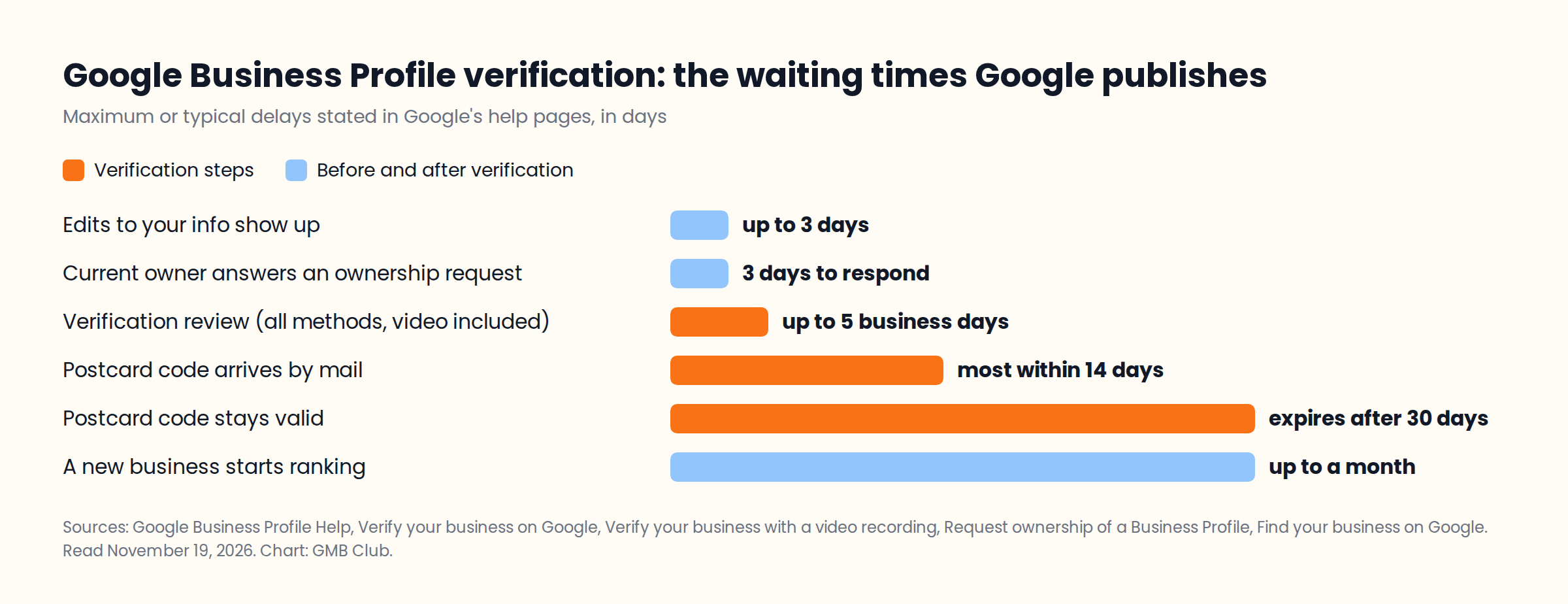
| Step | Delay published by Google |
|---|---|
| Edits to your business info appear | "changes can take up to 3 days to appear" |
| Current owner answers your ownership request | "has 3 days to respond" |
| Verification review, including video | "up to 5 business days" |
| Postcard arrival | "Most codes arrive within 14 days." |
| Postcard code validity | "Verification codes expire after 30 days." |
| A new business appears in rankings | "Rankings for new businesses can take up to a month to appear in search results." |
The postcard: three rules that save weeks
The postcard is the slowest method and the one most often broken by the owner. While you wait, Google gives two instructions:
- "Do not edit your business name, address, or category on your Business Profile. If you do, the code we sent you won't work."
- "Do not request a new code. If you do, we invalidate the code in the mail and send a new one."
And a third, about security: "Do not share the verification code with anyone, even with those who manage your Business Profile." Google adds: "Google will never ask for your verification code." A call or message asking for your code is a scam, whoever claims to be calling.
When verification fails or comes back
Google lists three situations on the same help page:
- The "Get verified" button reappears. It "means Google couldn't completely verify your business." Re-verify, and try another method if several are offered.
- A "Review issues" notification after a video. Your video wasn't accepted: select Review issues and follow the instructions.
- A request for more info. It is "likely because some of your business details were recently updated." Select Get Verified and go through the process again.
Verification is not permanent either. Google's eligibility page lists reasons ownership can be revoked, starting with "You haven't signed in to your account recently." Signing in regularly and keeping the profile accurate is the simplest protection.
10 locations or more: bulk verification
Chains don't have to film 30 videos. Google's bulk verification page applies when "Your spreadsheet has 10 or more profiles from the same business." Three conditions trip up most requests: "Agencies with more than one business in one account can't bulk verify," "Duplicate, suspended, or disabled profiles don't count towards the 10 Business Profile minimum," and the business must not be a service-area business. The request goes through Business Profile Manager, under "Verifications," then "Chain." Google warns that it "may de-verify accounts that don't actively manage their profiles."
After verification: the first week
A verified profile starts from where it is, not from the top. Our checklist for the first week: complete every field (hours, categories, description, attributes, photos), reply to existing reviews (our guide on how to respond to Google reviews has examples), and check where you rank (see how to check your position on Google). Our audit checklist goes field by field.
GMB Club is the all-in-one marketing platform for local businesses: once your verified profile is connected, the Google Business Profile hub monitors it with real data (audits, the keywords people use to find you, weekly review trends), the Visibility Agent scores it out of 100 with corrections you apply in one click, and the Reviews Agent handles replies, for one location or a whole network.
Limits of this guide
Google chooses the methods per profile, so we can't predict which ones you will see. The delays are Google's published figures, not measurements of our own: in practice, a review can be faster or, "on rare occasions," slower. Button names and menus change often; the quotes come from Google's English help pages read on November 19, 2026.
Guide written by Adam Abdelmoumen, co-founder of GMB Club. Sources checked on November 19, 2026.
Frequently asked questions
Can I choose how to verify my Google Business Profile?
No. Google writes: "Verification methods are automatically determined by Google and can't be changed." They depend on your business type, public info, region and hours. If several options show, you can try another one.
How long does Google Business Profile verification take?
After you complete the steps, Google says verification reviews "take up to 5 business days." By postcard, add the mailing time: "Most codes arrive within 14 days," and the code expires after 30 days.
What should a verification video show?
For a storefront: your location (street signs, nearby businesses), your business existence (signage with the exact profile name) and proof of management (cash register, kitchen, storage room). It must be one unedited recording of at least 30 seconds, made from a mobile device through your profile.
Why did the Get verified button come back?
Google says it "means Google couldn't completely verify your business." Re-verify, and try another method if several are offered.
Can I verify 10 or more locations at once?
Yes, with bulk verification in Business Profile Manager, if your spreadsheet has "10 or more profiles from the same business." Agencies managing several businesses in one account and service-area businesses can't use it.
Can a verified profile lose its verification?
Yes. Ownership can be revoked, for example if "You haven't signed in to your account recently." Signing in regularly and keeping the profile up to date avoids it.