
Show your Google reviews on your website
Who this is for: you already have a website (WordPress, Shopify, PrestaShop, Wix or a custom website) and you want to show your Google reviews on it, without copying them by hand and without maintaining anything.
What you'll see: where to get your code in the app, how to paste it on your website, and what your reviews look like once displayed.
What it is for
A visitor who hesitates is reassured by seeing that other customers came before them and left happy. Showing your Google reviews on your website gives them that proof at the moment they decide, without them having to leave your page to look for it elsewhere.
You paste a single line (or a shortcode on WordPress), and that's it: the rating and the reviews shown update automatically. Nothing to copy, nothing to refresh.
Get your code
- Open the Review Management page (see Manage your Google reviews).
- To the right of the tabs, click Show these reviews on your website.
- The Your reviews on your website window opens.
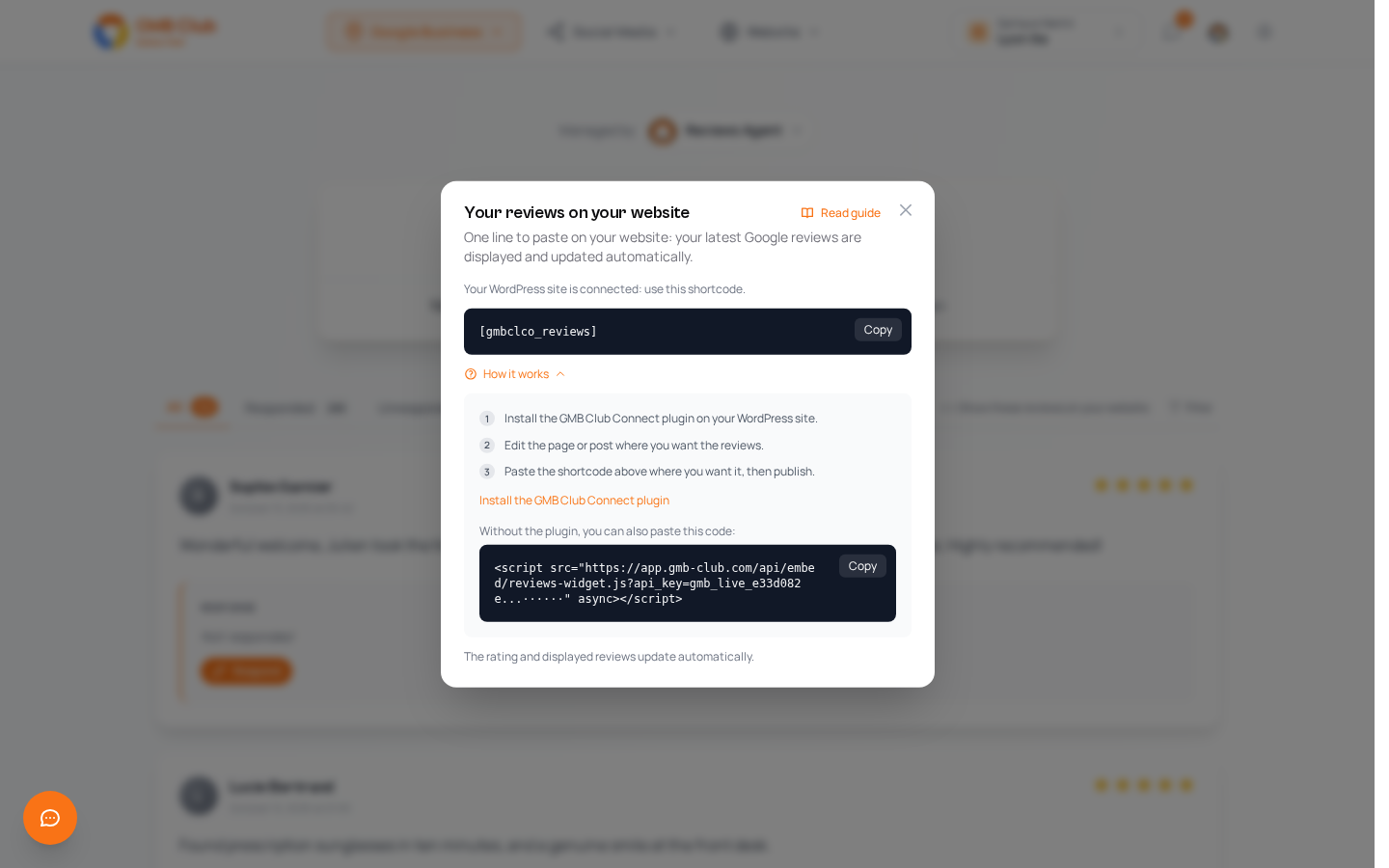
Your key is created in one click, with no form to fill in. It is a read-only key: it does not allow anything to be changed on your account. The window recognizes your website's platform (WordPress, Shopify, PrestaShop or Wix) and adapts the code to copy and the steps to follow.
Each code has its own Copy button. Use it rather than selecting the text by hand: on screen, the key is partly hidden.
Install it on your website
WordPress
When your WordPress website is connected, the window offers you a shortcode, even simpler than a line of code:
[gmbclco_reviews]
Expand How it works to see the steps to follow:
- Install the GMB Club Connect plugin on your WordPress website (the Install the GMB Club Connect plugin link is just below the steps).
- Edit the page or post where you want to show your reviews.
- Paste the shortcode where you want it, then publish.
Without the plugin, the window also gives you a line of code to paste, as for other websites.
Shopify, PrestaShop, Wix and custom websites
You paste a line like this one, where your key replaces YOUR_KEY:
<script src="https://app.gmb-club.com/api/embed/reviews-widget.js?api_key=YOUR_KEY" async></script>
On Shopify, PrestaShop or Wix, the window recognizes your platform and tells you where to paste the line. On a custom website, paste it into the page's HTML code, where you want to see your reviews, then save.
In the window, the line already contains your real key. You copy it as is with Copy, you don't type anything.
What your reviews look like on your website
Once the line is in place, your reviews show on your page:
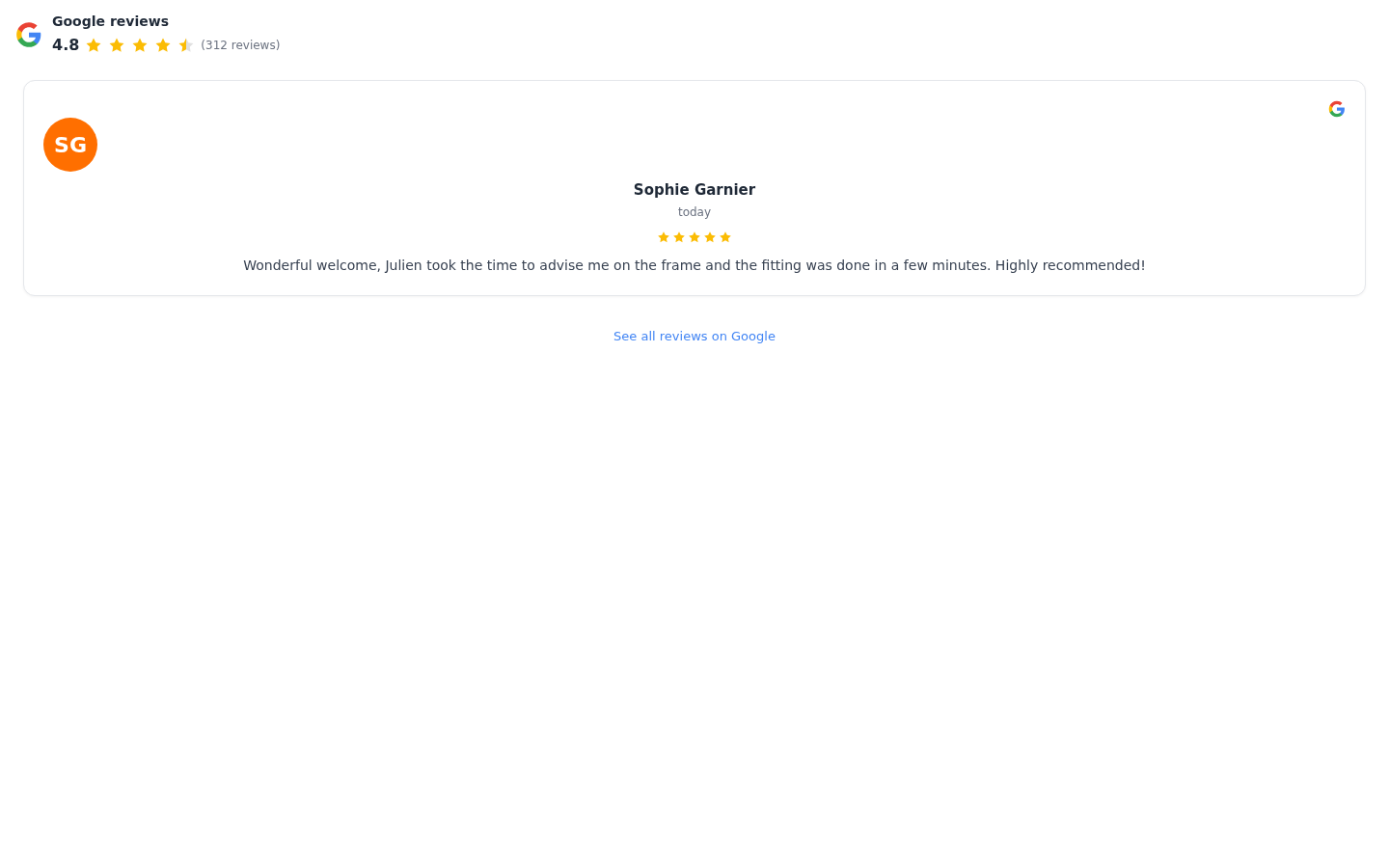
- at the top, Google reviews, your average rating with its stars and your number of reviews;
- in the middle, your reviews as cards: the author's initials and name, date, stars and text;
- at the bottom, the See all reviews on Google link.
These are your real Google reviews, pulled in automatically: when a new review arrives on your listing, you have nothing to touch up on your website.
If something goes wrong
Most questions (automatic updates, website speed, choice of the reviews shown, supported platforms…) are answered in the FAQ, under the Reviews on your website section.